Showing posts with label highlight. Show all posts

Monday, May 2, 2016

How to highlight the text of a Userform Textbox at mouse click in EXCEL VBA

First create a userform with a text box (Pic 1, pic 2, pic 3)


In the code of the userform, write following code:

Private Sub TextBox1_MouseDown(ByVal Button As Integer, ByVal Shift As Integer, ByVal X As Single, ByVal Y As Single)
    With UserForm1.TextBox1
        .SelStart = 0
        .SelLength = Len(.Text)
        .ForeColor = &H80000001
    End With
End Sub

Now, whenever the user click on the textbox, it will highlight the text inside automatically


Friday, March 4, 2016

How to highlight an option button in EXCEL when it is selected by the user (no macro needed)

If you want to highlight the selected option button for your custom form in EXCEL, first set the background of the option button as "Transparent": Right click on the option button > "Format Control..." then on tab "Colors and Lines, put the "Transparency" level at 100% and press "OK":


Then if the result of your option button appear in cell "A5" for example (see previous post here to see how to do) then in cell A1 and A2 (behind the option buttons), enter respectivelly the following formulas:

"=if(A5=1,"color","")"
"=if(A5=2,"color","")"


Finally, create a conditional format to color the cell when the value of the cell is equal to "color". 
Trick to not show the formula: put the default font color of A1 and A2 as white and in the conditional formating options, set the font color to be same as the cell background color when the value is equal to "color".


As a result, the option button will be highlighted once the user select it:


Created by DoMyExcel.com © | Excel & VBA Consulting | Customized Excel Solutions starting at 29 USD
Services provided to Individuals and Businesses | Free Quote: DoMyExcel@gmail.com

Saturday, January 10, 2015

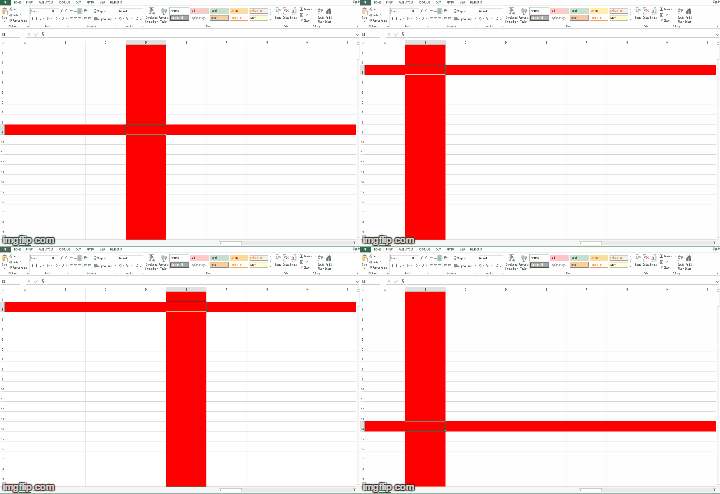
How to highlight the row and column of a selected cell in Excel using a VBA macro

To color in red the current row and column of a selected cell, enter following code in the worksheet event "SelectionChange":

Private Sub Worksheet_SelectionChange(ByVal Target As Range)
Cells.Interior.ColorIndex = 0
Rows(Target.Row).Interior.ColorIndex = 3
Columns(Target.Column).Interior.ColorIndex = 3
End Sub


Created by DoMyExcel.com © | Excel & VBA Consulting | Customized Excel Solutions starting at 29 USD
Services provided to Individuals and Businesses | Free Quote: DoMyExcel@gmail.com