Showing posts with label selection. Show all posts

Thursday, February 25, 2016

Excel Tip: Create a PivotTable of all the data in a sheet just by selecting one Cell.

A quick way of creating a PivotTable of the Data in one sheet is to select one of the cells that contains the data to Pivot. Excel will automatically select all the table and Pivot all the Data. 

In the example below only Cell C4 was selected. After clicking on PivotTable Excel automatically expanded the selection to be all the Data in Sheet 1.


Created by DoMyExcel.com © | Excel & VBA Consulting | Customized Excel Solutions starting at 29 USD
Services provided to Individuals and Businesses | Free Quote: DoMyExcel@gmail.com
Do My Excel Site

Wednesday, February 24, 2016

Excel Tip: Write and Edit Formulas in several sheets at the same time!

You can Edit several Worksheets in Excel at the same time just by Selecting multiple Sheet Tabs through holding the SHIFT button. 

After the Sheets are selected you can keep on editing them until you click in one specific WorkSheet again.


The selection of Sheets can be used to input formulas and to edit the format of cells.


Created by DoMyExcel.com © | Excel & VBA Consulting | Customized Excel Solutions starting at 29 USD
Services provided to Individuals and Businesses | Free Quote: DoMyExcel@gmail.com
 Do My Excel

Saturday, January 10, 2015

How to add borders all around an Excel range with a simple VBA macro

When recording a macro to see what is the VBA code to apply borders, you probably see the following code:

            With Selection.Borders(xlEdgeLeft)
                .LineStyle = xlContinuous
                .ColorIndex = 0
                .TintAndShade = 0
                .Weight = xlThin
            End With
            With Selection.Borders(xlEdgeTop)
                .LineStyle = xlContinuous
                .ColorIndex = 0
                .TintAndShade = 0
                .Weight = xlThin
            End With
            With Selection.Borders(xlEdgeBottom)
                .LineStyle = xlContinuous
                .ColorIndex = 0
                .TintAndShade = 0
                .Weight = xlThin
            End With
            With Selection.Borders(xlEdgeRight)
                .LineStyle = xlContinuous
                .ColorIndex = 0
                .TintAndShade = 0
                .Weight = xlThin
            End With
            With Selection.Borders(xlInsideVertical)
                .LineStyle = xlContinuous
                .ColorIndex = 0
                .TintAndShade = 0
                .Weight = xlThin
            End With
            With Selection.Borders(xlInsideHorizontal)
                .LineStyle = xlContinuous
                .ColorIndex = 0
                .TintAndShade = 0
                .Weight = xlThin
            End With


When you simply want to have border all around, you can shorten the code to:

            With Selection.Borders
                .LineStyle = xlContinuous
                .ColorIndex = 0
                .TintAndShade = 0
                .Weight = xlThin
            End With

Created by DoMyExcel.com © | Excel & VBA Consulting | Customized Excel Solutions starting at 29 USD
Services provided to Individuals and Businesses | Free Quote: DoMyExcel@gmail.com

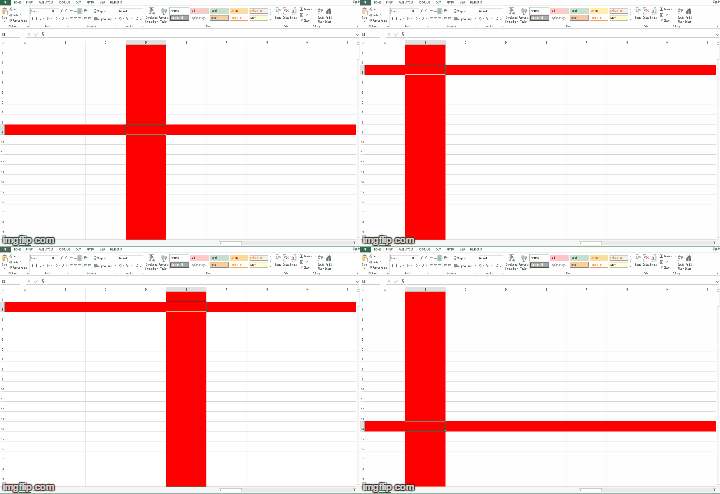
How to highlight the row and column of a selected cell in Excel using a VBA macro

To color in red the current row and column of a selected cell, enter following code in the worksheet event "SelectionChange":

Private Sub Worksheet_SelectionChange(ByVal Target As Range)
Cells.Interior.ColorIndex = 0
Rows(Target.Row).Interior.ColorIndex = 3
Columns(Target.Column).Interior.ColorIndex = 3
End Sub


Created by DoMyExcel.com © | Excel & VBA Consulting | Customized Excel Solutions starting at 29 USD
Services provided to Individuals and Businesses | Free Quote: DoMyExcel@gmail.com

Thursday, March 20, 2014

How to anchor a shape to fit with an Excel cell


Control the size of the shape to match with cell size


When inserting a shape in an Excel spreadsheet (menu “Insert” > “Shapes”), hold “ALT” to lock in your shape within the multi cell selection.