Showing posts with label Excel. Show all posts

Sunday, June 19, 2016

EXCEL CHART: How to easily add new series to existing chart

To add series to an existing chart easily, copy the data, select the chart and paste as shown in GIF below:


EXCEL VBA - How to link Option buttons together in a VBA Userform

To manage the option buttons on a VBA userform, use the "option button group" parameter: Enter one name per group of option button, so the program will know which ones are linked.


EXCEL VBA: How to only accept number format in a VBA Userform Textbox

To accept only numbers in a VBA Userform Textbox for example, use the following code:


Private Sub TextBox1_Change()
    OnlyNumbers
End Sub

Private Sub OnlyNumbers()
    If TypeName(Me.ActiveControl) = "TextBox" Then
        With Me.ActiveControl
            If Not IsNumeric(.Value) And .Value <> vbNullString Then
                MsgBox "Sorry, only numbers allowed"
                .Value = vbNullString
            End If
        End With
    End If
End Sub

EXCEL VBA: How to convert a Textbox value in number

The textbox always return a string, you have to use one of the function below to convert it to the format you want:

CBool(expression)CByte(expression)CChar(expression)CDate(expression)CDbl(expression)CDec(expression)CInt(expression)CLng(expression)CObj(expression)CSByte(expression)CShort(expression)CSng(expression)CStr(expression)CUInt(expression)CULng(expression) 
CUShort(expression) 


Example if we want to multiply by 2 the number entered in Textbox1:


Private Sub CommandButton1_Click()
a = CInt(TextBox1.Value)
MsgBox ("If we multiply Textbox1 value by 2, the result is: " & a * 2)
End Sub

Friday, April 1, 2016

EXCEL TIP: How to Break and Interrupt an Excel VBA Macro

If you want to break a VBA macro and stop it from  running or if your code is stuck in a loop just press the following hotkey: 

CTRL + BREAK 

CTRL + BREAK . Interrupt VBA

(If you dont have the "Break" Key on your keyboard you can use the "On-Screen Keyboard" from Windows)


Created by DoMyExcel.com © | Excel & VBA Consulting | Customized Excel Solutions starting at 89 USD
Services provided to Individuals and Businesses | Free Quote: DoMyExcel@gmail.com
Do my Excel

Wednesday, March 30, 2016

EXCEL Tip : How to Change the Excel Theme

If you are bored with the usual Excel Theme - You can change it! Just follow the 2 easy steps below:


office theme

There are 4 different themes in Office 2016

DARK GRAY

dark gray

BLACK

black

WHITE
white theme

Colourful (by default) - Green in Excel 2016

colourful


Created by DoMyExcel.com © | Excel & VBA Consulting | Customized Excel Solutions starting at 89 USD
Services provided to Individuals and Businesses | Free Quote: DoMyExcel@gmail.com
DO my Excel Website

Tuesday, March 22, 2016

Excel FINANCE Tip : Connect Excel to Stock Historical Data

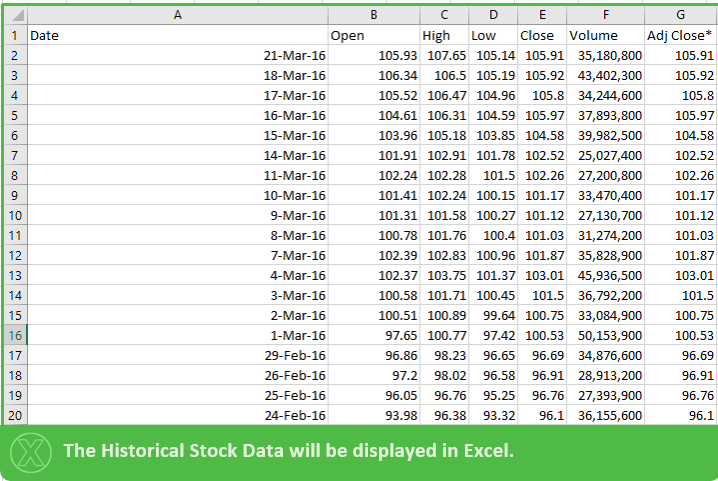
If you wish to connect your Excel file to Live or Historical Stock Data please follow the instructions below.


After Opening a new Excel Workbook:


The "New Web Query" Excel Browser will open as below:


Search the Stock in the address bar as shown below:


A Start Date  and End Date for the Historical Data can be selected above.( Click on "Get Prices" Afterwards). TIP: If date is left far in the future Excel will always have the latest data when the connection is refreshed.

After Step 4) just Click IMPORT and proceed to the step below:


The Data Connection can always be refrehes by clicking on the "Refresh All" button as below:


Thank you for your attention!


Created by DoMyExcel.com © | Excel & VBA Consulting | Customized Excel Solutions starting at 89 USD
Services provided to Individuals and Businesses | Free Quote: DoMyExcel@gmail.com
Do My Excel Website

Tuesday, March 15, 2016

How to exit a userform in EXCEL VBA

Simply use the "End" method:

Sub commandbutton1_click()
End
End Sub


Created by DoMyExcel.com © | Excel & VBA Consulting | Customized Excel Solutions starting at 89 USD
Services provided to Individuals and Businesses | Free Quote: DoMyExcel@gmail.com

Monday, March 14, 2016

How to add hyperlinks for macro call outs in EXCEL VBA

This program will create hyperlinks that link to their own cell in excel, it is then easy to use these hyperlinks to create macros (see blog post http://domyexcelblog.blogspot.com/2016/03/how-to-run-macro-from-hyperlink-event.html ) :

Sub Add_Hyperlinks_for_macros()

For i = 6 To 200
    If Cells(i, 5) <> "" Then
                ActiveSheet.Cells(i, 5).Select
                ActiveSheet.Hyperlinks.Add Anchor:=Selection, Address:="", SubAddress:= _
                    "'My Contacts'!e" & i, TextToDisplay:="Add Photo"
    End If
Next

End Sub


Created by DoMyExcel.com © | Excel & VBA Consulting | Customized Excel Solutions starting at 29 USD
Services provided to Individuals and Businesses | Free Quote: DoMyExcel@gmail.com

How to check the size of a picture in bytes in EXCEL VBA

To check the size in bytes of your pictures, use the "FileLen()" function of VBA:

Sub Check_pic_size(mypic)
Set mypic = ActiveSheet.Shapes.AddPicture(pp, msoFalse, msoTrue, ActiveCell.Left, ActiveCell.Top, -1, -1)

If FileLen(pp) > 100000 Then
     MsgBox ("The size of your file is too big, please reduce to 100,000 bytes. Current size is " &      FileLen(pp) & " bytes.")
     mypic.Delete
     Exit Sub
End If
End Sub


Created by DoMyExcel.com © | Excel & VBA Consulting | Customized Excel Solutions starting at 29 USD
Services provided to Individuals and Businesses | Free Quote: DoMyExcel@gmail.com

Video example: Import and size pictures in EXCEL VBA

This video show an example of contact file where up to 30 profiles can be added with profile info and autosized profile pic.


Created by DoMyExcel.com © | Excel & VBA Consulting | Customized Excel Solutions starting at 29 USD
Services provided to Individuals and Businesses | Free Quote: DoMyExcel@gmail.com

Excel Tip: Clear / Unfilter FILTERs Quickly

In Order to Clear / Unfilter a filter quickly you can use the Filter Hotkey Two Times :

Press 2 Times : CTRL + SHIFT + L 


Created by DoMyExcel.com © | Excel & VBA Consulting | Customized Excel Solutions starting at 29 USD
Services provided to Individuals and Businesses | Free Quote: DoMyExcel@gmail.com
 Do My Excel Webpage

Thursday, March 10, 2016

Example: Add ON EXCEL to create and export custom pictures

Take a look at this EXCEL Add on we created in order to easily apply custom format, caption and other elements to pictures and to export them:


Created by DoMyExcel.com © | Excel & VBA Consulting | Customized Excel Solutions starting at 29 USD
Services provided to Individuals and Businesses | Free Quote: DoMyExcel@gmail.com

How to select all the pictures of a worksheet in EXCEL

To select all the shapes / objects / pictures of a worksheet in EXCEL, simply select one of the shapes and press "CTRL"+ A. You can then copy them, delete them all, etc.


Created by DoMyExcel.com © | Excel & VBA Consulting | Customized Excel Solutions starting at 29 USD
Services provided to Individuals and Businesses | Free Quote: DoMyExcel@gmail.com

Sunday, March 6, 2016

How to display all the elements of an array in a message box VBA

If you want to know what is contained in your VBA array simply use the Join method:

Join(my_array,vbCr)

Example: if you want to add the following data into an array and then display the array


Sub print_array_example()

Dim arr() As Variant

ReDim arr(1 To 5) As Variant

For i = 1 To 5
    arr(i) = Cells(i, 1)
Next
  
MsgBox Join(arr, vbCr)

End Sub


Created by DoMyExcel.com © | Excel & VBA Consulting | Customized Excel Solutions starting at 29 USD
Services provided to Individuals and Businesses | Free Quote: DoMyExcel@gmail.com

Friday, March 4, 2016

How to highlight an option button in EXCEL when it is selected by the user (no macro needed)

If you want to highlight the selected option button for your custom form in EXCEL, first set the background of the option button as "Transparent": Right click on the option button > "Format Control..." then on tab "Colors and Lines, put the "Transparency" level at 100% and press "OK":


Then if the result of your option button appear in cell "A5" for example (see previous post here to see how to do) then in cell A1 and A2 (behind the option buttons), enter respectivelly the following formulas:

"=if(A5=1,"color","")"
"=if(A5=2,"color","")"


Finally, create a conditional format to color the cell when the value of the cell is equal to "color". 
Trick to not show the formula: put the default font color of A1 and A2 as white and in the conditional formating options, set the font color to be same as the cell background color when the value is equal to "color".


As a result, the option button will be highlighted once the user select it:


Created by DoMyExcel.com © | Excel & VBA Consulting | Customized Excel Solutions starting at 29 USD
Services provided to Individuals and Businesses | Free Quote: DoMyExcel@gmail.com