Showing posts with label do. Show all posts

Friday, April 1, 2016

EXCEL TIP: How to Break and Interrupt an Excel VBA Macro

If you want to break a VBA macro and stop it from  running or if your code is stuck in a loop just press the following hotkey: 

CTRL + BREAK 

CTRL + BREAK . Interrupt VBA

(If you dont have the "Break" Key on your keyboard you can use the "On-Screen Keyboard" from Windows)


Created by DoMyExcel.com © | Excel & VBA Consulting | Customized Excel Solutions starting at 89 USD

Services provided to Individuals and Businesses | Free Quote: DoMyExcel@gmail.com
Do my Excel

Wednesday, March 30, 2016

EXCEL Tip : How to Change the Excel Theme

If you are bored with the usual Excel Theme - You can change it! Just follow the 2 easy steps below:


office theme

There are 4 different themes in Office 2016

DARK GRAY

dark gray

BLACK

black

WHITE
white theme

Colourful (by default) - Green in Excel 2016

colourful


Created by DoMyExcel.com © | Excel & VBA Consulting | Customized Excel Solutions starting at 89 USD
Services provided to Individuals and Businesses | Free Quote: DoMyExcel@gmail.com
DO my Excel Website

Tuesday, March 22, 2016

Excel FINANCE Tip : Connect Excel to Stock Historical Data

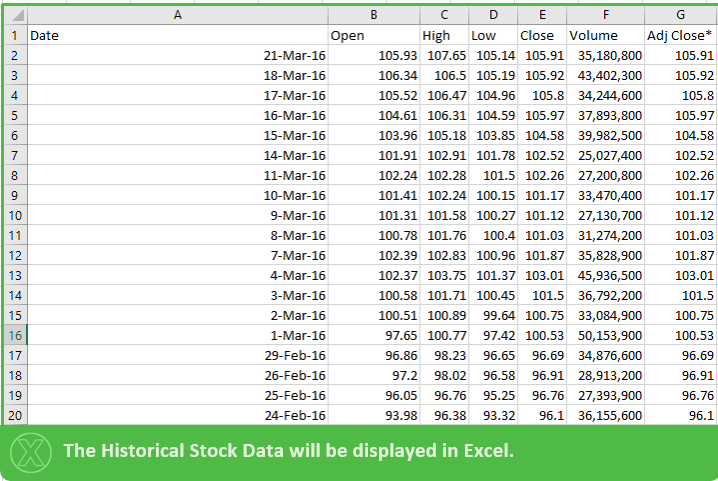
If you wish to connect your Excel file to Live or Historical Stock Data please follow the instructions below.


After Opening a new Excel Workbook:


The "New Web Query" Excel Browser will open as below:


Search the Stock in the address bar as shown below:


Start Date  and End Date for the Historical Data can be selected above.( Click on "Get Prices" Afterwards). TIP: If date is left far in the future Excel will always have the latest data when the connection is refreshed.

After Step 4) just Click IMPORT and proceed to the step below:


The Data Connection can always be refrehes by clicking on the "Refresh All" button as below:


Thank you for your attention!


Created by DoMyExcel.com © | Excel & VBA Consulting | Customized Excel Solutions starting at 89 USD
Services provided to Individuals and Businesses | Free Quote: DoMyExcel@gmail.com
Do My Excel Website

Thursday, February 25, 2016

Excel Tip: Create a PivotTable of all the data in a sheet just by selecting one Cell.

A quick way of creating a PivotTable of the Data in one sheet is to select one of the cells that contains the data to Pivot. Excel will automatically select all the table and Pivot all the Data. 

In the example below only Cell C4 was selected. After clicking on PivotTable Excel automatically expanded the selection to be all the Data in Sheet 1.


Created by DoMyExcel.com © | Excel & VBA Consulting | Customized Excel Solutions starting at 29 USD
Services provided to Individuals and Businesses | Free Quote: DoMyExcel@gmail.com
Do My Excel Site